Control Stereo Width
Adjust stereo width from 0% to 200%. Reduce Side level to narrow an overly wide mix, or increase it to add more stereo spread. Keep an eye on the correlation meter and check mono compatibility as you make adjustments.
Working hours: 9:00–20:00 (Sunday: Closed) | sales@arefyevstudio.com

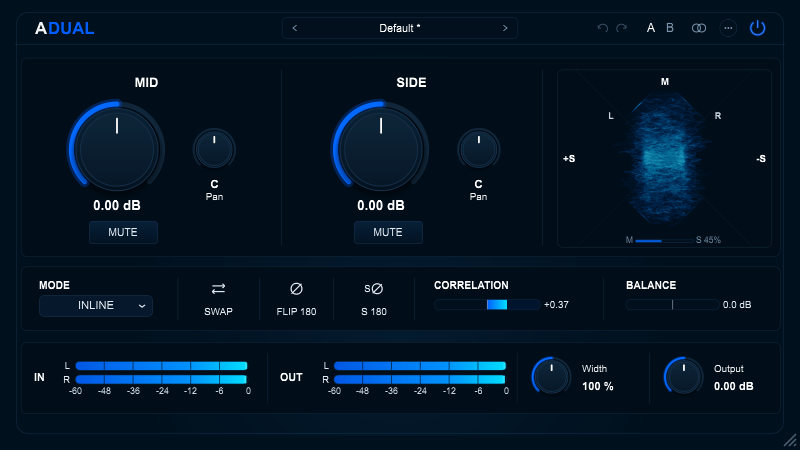
A stereo and Mid/Side processing utility for mixing and mastering. ADUAL lets you adjust Mid and Side levels independently, control stereo width and panning, manage channel polarity, and monitor stereo image and phase correlation in real time. Use it to refine the center, shape the stereo field, check mono compatibility, or build an external Mid/Side processing chain.
Feedback, bug reports, feature requests, and ideas for future products are welcome on Patreon.
STEREO CONTROL & M/S PROCESSING
ADUAL separates a stereo signal into its Mid (center) and Side (stereo difference) components, giving you independent control over each. Adjust their levels and panning, change stereo width, isolate either component for listening, and monitor phase correlation while mixing or mastering.
Adjust stereo width from 0% to 200%. Reduce Side level to narrow an overly wide mix, or increase it to add more stereo spread. Keep an eye on the correlation meter and check mono compatibility as you make adjustments.
Adjust Mid and Side gain independently, pan each component during stereo decoding, or mute either one to isolate the other. Bring vocals and other center elements forward, control stereo ambience, or listen to the Side component on its own.
Use the vectorscope to visualize the Mid/Side balance, while the correlation and balance meters help you monitor stereo compatibility and channel levels. SWAP exchanges the left and right channels, FLIP 180 reverses the polarity of both channels, and S 180 reverses the polarity of the Side component only.
THREE OPERATING MODES
Choose the mode that fits your signal chain. INLINE processes stereo audio and returns a stereo output. ENCODE converts a stereo signal into separate Mid and Side channels, while DECODE reconstructs stereo from a processed Mid/Side pair. This allows you to place external processors between the encoding and decoding stages.
Converts the incoming left and right channels to Mid/Side, applies ADUAL's processing, and converts the signal back to stereo. Use INLINE on stereo tracks, buses, and the master channel.
Converts a stereo input into a two-channel Mid/Side signal. Channel 0 carries Mid, and Channel 1 carries Side. Use this mode before external stereo processors that can process the two components independently.
Accepts a two-channel Mid/Side signal, with Mid on Channel 0 and Side on Channel 1, and converts it back to left/right stereo. Use it after external Mid/Side processing or when working with a properly routed Mid/Side microphone recording.
Mid Pan and Side Pan are inactive in ENCODE mode because the signal remains in the Mid/Side domain and is not decoded to stereo. When ADUAL is loaded on a mono track with matching mono input and output, it operates in INLINE mode; ENCODE and DECODE are unavailable. The CLAP version supports stereo processing only.
For example, use ENCODE to separate a stereo mix into Mid and Side channels, process them independently with external EQ or compression, and then use DECODE to restore the stereo signal. This gives you a flexible Mid/Side processing chain using your existing plugins.
PROCESSING CONTROLS
REAL-TIME MONITORING
Monitor input and output sample peaks, check left/right balance, and visualize the stereo signal with the vectorscope. The correlation meter helps identify potential phase issues and assess mono compatibility during processing.
Monitor left and right sample-peak levels across a range of −60 to 0 dBFS. The clip indicator latches when a sample exceeds 0 dBFS and can be cleared by clicking the meter bar. These meters display sample peaks, not true peaks.
Visualize the stereo signal with Mid on the vertical axis and Side on the horizontal axis. A mono signal forms a vertical trace; a pure anti-phase signal forms a horizontal trace.
Monitor inter-channel correlation from −1.00 to +1.00 and the relative energy balance between the left and right channels. Use these readings to identify potential phase problems and check stereo compatibility, always alongside critical listening.
SESSION WORKFLOW
Save custom processing setups, compare two versions of your settings with A/B snapshots, and undo or redo parameter changes without interrupting your workflow.
Six Factory Presets
Choose from six factory presets: Default, Mid Focus, Side Focus, Mono Compatibility, Width Control, and M/S Encode Clean. Use them as quick starting points for common Mid/Side processing tasks.
User Presets
Save your own settings as .adualpreset files, then import, export, or delete them as needed. User presets are stored in the AREFYEV STUDIO/ADUAL folder within your Windows AppData directory.
A/B Snapshots
Store two temporary versions of your current processing settings and switch between them to compare results. Shift-click an A/B slot to save the current settings. Right-click a slot to access copy options.
Undo/Redo and Parallel Gain Link
Undo or redo changes using the 64-step history. Parallel Gain Link keeps manual Mid Gain and Side Gain adjustments linked, while DAW automation continues to control the two parameters independently.
NEED TO KNOW
Compatibility, operating modes and practical use of AREFYEV ADUAL v1.0.0.
ADUAL v1.0.0 is available for Windows 10 and Windows 11 (64-bit x86). macOS and Linux versions are not currently available. AU and AAX formats are not included in this release.
The Windows release includes VST3, CLAP 1.2.7 and an optional Standalone application. Select the components you need in the installer.
INLINE processes a stereo signal and outputs stereo. ENCODE converts stereo input to Mid/Side output. DECODE accepts Mid/Side input and reconstructs stereo output.
Yes. The VST3 and Standalone versions support mono processing when the host provides matching mono input and output configurations. In this case, ADUAL operates in INLINE mode; ENCODE and DECODE are unavailable. The CLAP version supports stereo processing only.
Pan controls affect stereo decoding in INLINE and DECODE. They are bypassed in ENCODE and ignored by the Mono DSP path.
No. Output is a post-processing gain trim. It does not prevent output peaks from exceeding 0 dBFS.
No. Parallel Gain Link applies only to manual adjustments made through the plugin interface. DAW automation controls Mid Gain and Side Gain independently.
User presets are stored in %APPDATA%\AREFYEV STUDIO\ADUAL\Presets\ and use the .adualpreset file extension.
The v1.0.0 installer and binaries are not signed with a commercial Authenticode certificate, so Windows SmartScreen may display a warning. Only run the installer if you downloaded it from the official AREFYEV STUDIO website.
Download the ADUAL User Manual (PDF). It includes installation paths, operating mode explanations, control references, practical workflows and troubleshooting guidance.