
Upload Track for Mastering — What Actually Matters Before You Send Your File
You’re ready to send your track. It feels finished.
Most tracks fail here — at the point of export.
The moment you upload your file — that version defines the result.
If you're unsure how your file translates after export, check how your file translates after export.
What you upload sets the limit for mastering.
Uploading a Track for Mastering — More Than Just Sending a File
 Uploading a track isn’t a formality. It’s a technical decision that locks in everything your mix is built on.
A correct format doesn’t mean the file will actually work in mastering — what matters is how the mix behaves inside it.
Exporting a WAV feels like the safe choice. It isn’t. A file can look correct but still carry clipping, reduced dynamics, or processing that limits what mastering can actually do.
After export, the file becomes fixed — nothing inside it can be changed. No gain staging fixes. No undo on limiting. No recovery of clipped peaks.
File Format for Mastering — What to Send and Why It Matters
“Send a WAV file” sounds simple. In reality, it’s where a lot of hidden problems start.
We regularly receive files that technically meet the “WAV” requirement — but inside, they’re already compromised. Wrong bit depth. Upsampled sample rates. Exports that went through unnecessary conversion. Everything looks correct on paper, yet the file already carries signs of prior processing.
Here’s the key point: mastering works best when the file is as close to the original mix resolution as possible. No extra processing. No artificial changes. Just a clean, untouched export.
If you recorded and mixed at 24-bit / 44.1 kHz, that’s exactly what should be delivered. Not 16-bit. Not 48 kHz “just in case.” Changing it at export doesn’t improve quality — it only introduces rounding or interpolation that wasn’t there before.
We’ve seen cases where a track exported at 16-bit sounded noticeably flatter compared to the original 24-bit session. The mix stayed the same — but the sense of depth dropped noticeably. That loss can’t be reversed later.
Use this as a reference when preparing your file:
| Parameter | What to Use | Why It Matters |
|---|---|---|
| File Format | WAV or AIFF | Uncompressed formats preserve full audio detail without loss |
| Bit Depth | 24-bit (or 32-bit float if available) | Maintains dynamic range and avoids truncation during processing |
| Sample Rate | Same as your session (44.1 kHz / 48 kHz) | Prevents unnecessary resampling artifacts and preserves original detail |
There’s no advantage in “upgrading” your file at export. A 44.1 kHz mix doesn’t gain quality by becoming 96 kHz — it just gets mathematically stretched. The mastering process doesn’t need inflated numbers. It needs accuracy.
When the format is correct and untouched, the engineer gets full control. When it’s altered, even slightly, part of that control is already gone.
Exporting at a different sample rate than your session forces resampling, which can introduce subtle artifacts.
How to Upload Your Track — Simple Workflow
This is all you actually need to do before sending your track:
- Export your final mix as WAV or AIFF (no MP3)
- Make sure peaks are below 0 dB and no limiter is active
- Check that the file matches your session sample rate
- Listen once after export — not in your DAW, but as a file
- Upload and include notes or reference track if needed
That’s it. No processing after export. No last-minute changes.
Most mastering services use a simple upload form or file transfer link — you upload the file through a form or transfer link, add basic track info, click submit, and see confirmation that your file has been received and is queued for review.
In most cases, you’ll receive confirmation and initial feedback within a few hours, depending on the project.
If you have a reference track, include it. It helps define the direction — especially for low-end balance, tonal shape, and overall level.
Name your file clearly (artist – track title – version). It prevents confusion and speeds up processing.
What Not to Do Before Uploading
Don’t normalize the file. Don’t convert formats after export. Don’t try to make it louder. These steps don’t improve quality — they reduce control during mastering.
Headroom Before Mastering — The Space Your Track Still Needs
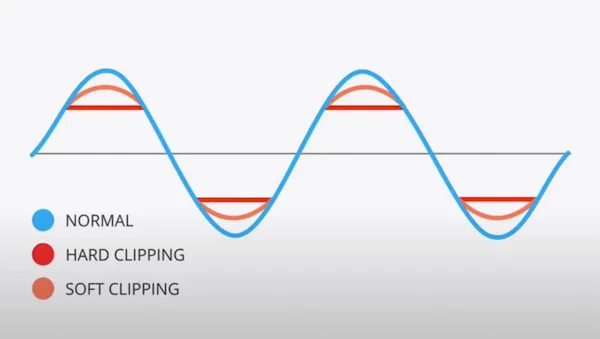 This is where things quietly go wrong. Not in the mix. Not in the arrangement. In the last step before export — when the track gets pushed just a little too far.
Headroom isn’t a number you aim for out of habit. It’s the remaining space that allows mastering to actually work. In practical terms, your peaks should sit around -6 dB to -3 dB. Not because it’s a rule — but because that range keeps the signal open and responsive.
What breaks that space? Almost always — a limiter on the master bus.
It might feel harmless. Maybe it’s only shaving off a couple of dB. Maybe it just makes the track feel “finished.” But that small move changes the behavior of the entire file. Transients get softened. Micro-dynamics flatten out. The track becomes harder to shape without pushing artifacts even further.
In some cases, simply exporting without a limiter restores transient punch that wasn’t obvious before. The mix stayed the same — but the exported file changed how it behaved under processing.
After that point, the lost space doesn’t return. Mastering can’t rebuild transient detail that’s already been clipped or compressed away. It can only work with what’s left.
If you’re chasing loudness before mastering, you’re solving the wrong problem at the wrong stage. What feels powerful in your DAW can translate as smaller, tighter, and less flexible once it’s pushed further.
If you want a deeper breakdown of how loudness and clipping interact — and why pushing level too early limits the final result — take a look at loudness vs clipping in mastering. It explains exactly where that line gets crossed.
Leave the level alone. Leave the peaks intact. The more headroom your file keeps, the more control mastering actually has.
Even 1–2 dB of limiting before export can reduce how far the track can be pushed later without introducing artifacts.
Common Upload Mistakes — Where Most Masters Get Compromised
By the time a track reaches mastering, most problems are already locked into the file.
If problems show up after mastering, they usually trace back to how the file was exported.
Clipping is one of the most common. Sometimes it’s visible. Red peaks, flattened waveforms. Easy to spot. But more often, it’s subtle — intersample peaks, tiny overs that don’t look critical until the track gets pushed harder. That’s when distortion shows up in places that felt clean before.
Then there’s over-limiting. A track that already feels loud before mastering usually means the dynamic range is already compressed. It might sound solid in isolation, but once you try to bring it to release level, it stops reacting. No punch. No movement. Just density.
Stereo widening is another hidden problem. Pushing the sides too far can make a mix feel bigger at first — until it collapses on mono systems or loses center focus. Vocals drift. Low-end weakens. What sounded wide becomes unstable.
And then there’s MP3. Still happens more than it should. Sometimes for convenience. Sometimes by accident. Once a track is encoded, high-frequency detail is already altered. Transients are softened. Artifacts get introduced. That information is gone — not reduced, but permanently changed.
In many cases, the mix is solid — but the exported file becomes the constraint. The balance is there, but the headroom isn’t — and a slightly clipped or over-limited export holds everything back.
After You Upload — What Actually Happens to Your Track
Once your file is uploaded, the work doesn’t start with plugins. It starts with checking what you actually sent.
Before anything is processed, the track is listened to as-is. Not casually — specifically to understand how it behaves. Are the peaks intact? Is there hidden clipping? Does the low-end stay controlled, or does it shift depending on level? These things don’t always show visually. You hear them when you push the signal.
We also check translation right away. Not across ten systems — just enough to catch instability. If a mix feels tight on one setup but falls apart on another, that tells you something about how it was exported. Sometimes it’s subtle phase issues. Sometimes it’s just the way the file was printed.
Another key point: headroom isn’t judged by numbers alone. A track can sit at -5 dB and still feel restricted if it’s already been processed too hard. On the other hand, a slightly hotter file might still work if the dynamics are intact. That’s why the first step is always listening, not reading meters.
If something stands out — not as a creative choice, but as a limitation — it’s identified immediately. Not everything gets “fixed.” Some things are worked around. But the earlier those constraints are understood, the more controlled the result will be.
So the moment after upload isn’t a black box. It’s a checkpoint — where the track is evaluated for what it really is, not what it was intended to be.
Send the right file — hear the real difference
If your track is exported correctly, mastering has room to work. If not — you're limiting the result before it even starts. Send your track and get a free demo master (up to 30 seconds) to hear how it actually translates when everything is done right.
Fast response — usually within a few hours. No automated processing.
Before You Upload — A Quick Reality Check
 At this point, you don’t need more theory. You need a clean final check.
Not a deep analysis. Not another round of tweaking. Just a few things that tell you whether the file you’re about to send will actually hold up once it’s pushed further.
Use this as a quick pre-upload check — not a full mastering checklist:
- No limiter on the master bus — peaks are intact and not shaved off
- Exported in WAV or AIFF — not MP3, not converted afterward
- Bit depth matches your session (usually 24-bit or higher)
- Sample rate hasn’t been changed at export
- No clipping — visible or hidden
- Stereo image feels stable, not artificially widened
- File is clearly named (artist – track – version)
Even when everything seems correct, one small detail can change how the track reacts at final level. Fixing that single point changed how the entire master reacted. More punch. More clarity. Same mix — different outcome.
If you want a more detailed breakdown of what to check before release, you can go deeper into the mastering checklist. But for now, this is enough to know your file is ready to move forward.
Once these points are clear, you’re not guessing anymore. You’re sending a file that can actually be mastered — not one that needs to be worked around.
Why the Way You Send Your Track Shapes the Final Master
Mastering doesn’t create quality — it reveals and refines what’s already there.
When a track comes in clean, with intact dynamics and proper headroom, the process opens up. There’s space to shape the low-end without it collapsing. Highs can be controlled without turning harsh. The groove stays alive even as the level goes up.
Now compare that to a file that’s already pushed. Slight limiting. A bit of clipping. Maybe nothing dramatic — but enough to reduce flexibility. In that case, every move becomes a compromise. Push the level, and artifacts show up. Try to clean it, and energy drops. You’re no longer enhancing — you’re managing damage.
We’ve worked on projects where two versions of the same mix were submitted. One properly exported, one slightly over-processed. The difference in the final master wasn’t subtle. One translated across systems. The other felt tight, smaller, less defined — even though the mix itself was identical.
That’s the real point. The quality of mastering isn’t just about the engineer or the gear. It’s about how much room the file gives for decisions to actually work.
Send a track with space, and you get control. Send a track that’s already constrained, and you get limitations.
Your file is ready — now let it translate
If everything is exported clean, you’re in the best position to get a master that actually holds up. Send your track and hear how it translates when nothing is limiting the process — no hidden clipping, no lost dynamics, no guesswork.
Clear process. Real engineers. No automated mastering.
FAQ — Uploading Your Track for Mastering
What’s the best file format to send for mastering?
WAV or AIFF. Uncompressed formats keep all the detail from your mix. MP3 or other compressed files remove information — especially in the highs and transients — and that loss can’t be restored later.
How much headroom should I leave before uploading?
Aim for peaks around -6 dB to -3 dB. Not as a strict rule, but as a safe range where the signal stays open. More important than the number is how the track behaves — it should feel dynamic, not already pushed.
Can I send an MP3 if that’s all I have?
It’s possible, but not recommended. MP3 files are already processed and limited in detail. Mastering can still be done, but the result will always be constrained compared to working from a full-resolution file.
What happens after I upload my track?
The file is first checked for technical issues — clipping, headroom, overall behavior. Then it’s evaluated by ear to understand how it reacts when pushed. From there, mastering decisions are based on what the track actually allows, not just how it looks.
Should I normalize my track before sending it?
No. Normalizing doesn’t improve quality — it just changes level. If your mix is already balanced, leave it as it is. Mastering will handle the final level properly.